

Anyone with access to screens that list data within the Admin Panel (Events, Entries, Start lists and Results; and for District Admins: Organisations) may manipulate how the data is displayed to them.
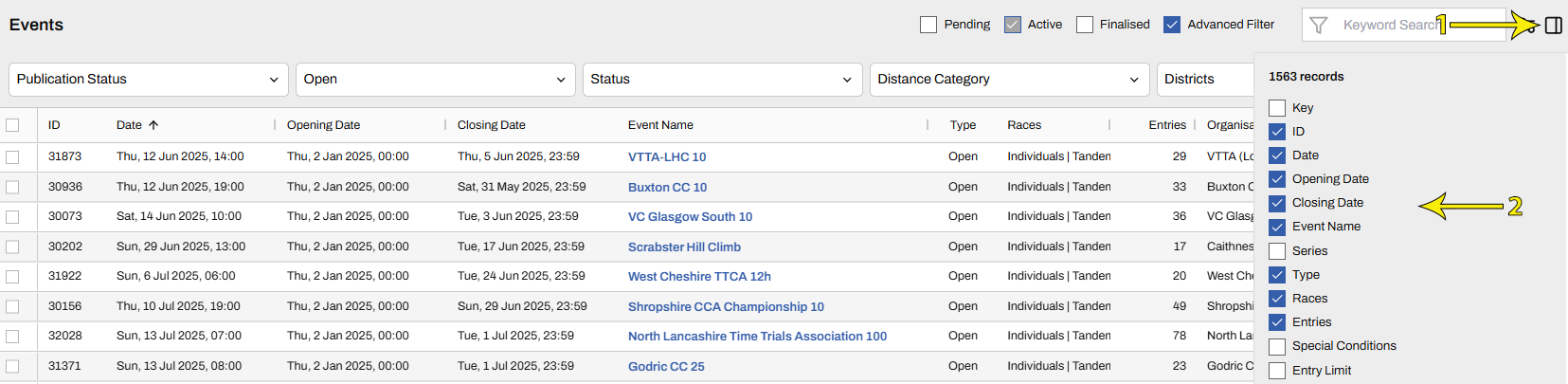
To change which columns are displayed, click the box icon, top right, and select the boxes next to the values you want to include.
If the Keyword Search is used, search terms will apply only to the data in the columns displayed.
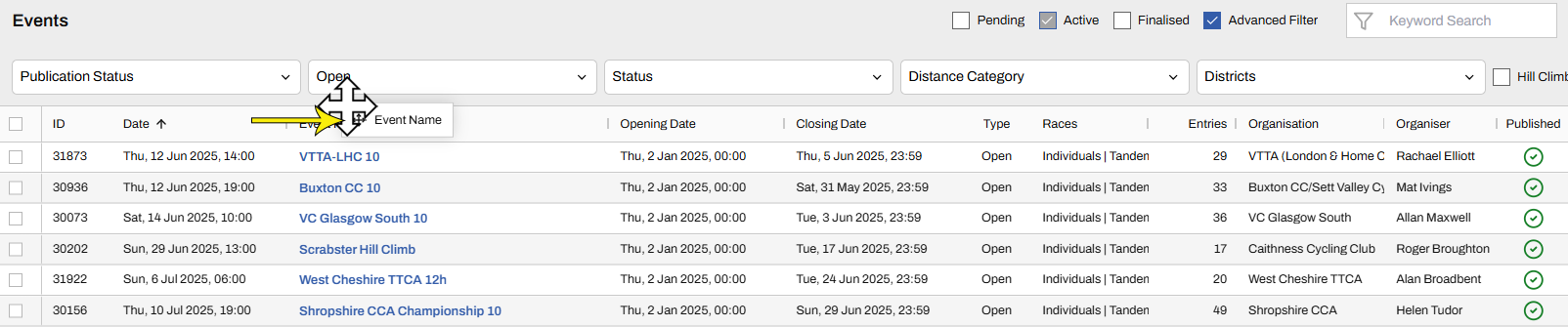
To reposition a column relative to the others, click and hold the column header and drag it, left or right, to a new location.
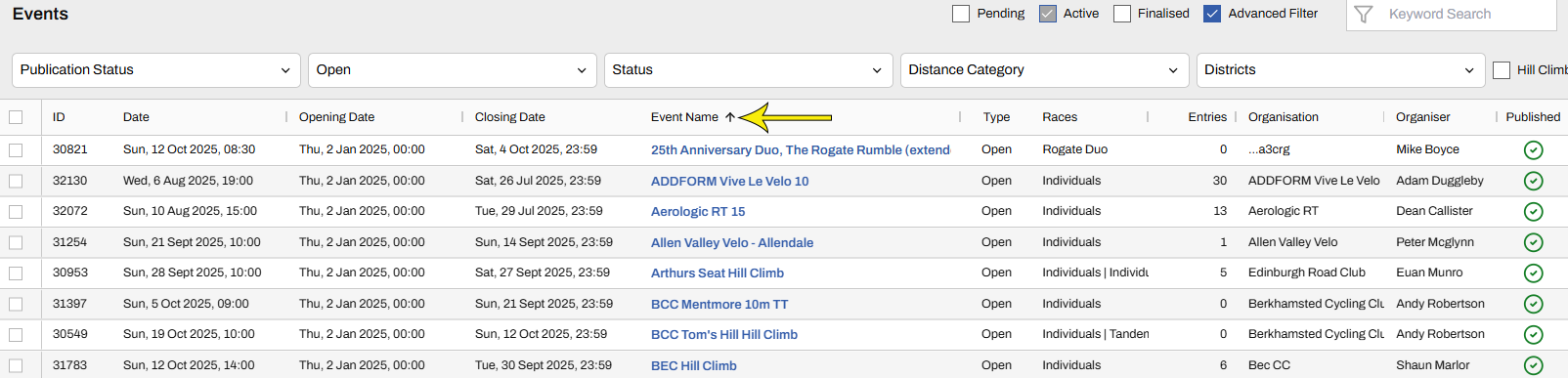
To reorder the data within a column, click (and release) the column header. Note the direction of the arrow (🡩 or 🡫) next to the column name of the ordered data.
To Export the displayed data to a CSV file (i.e. spreadsheet), click the "double paddle" icon, top right and select Export as CSV. If you want to change the columns exported, add or remove columns displayed on screen via the box icon, as explained above, and export.
