
This document covers:
District Sites are explained in their entirety in the Districts Sites Guide (🔗). This guide focuses on adding officials
1. Adding Officials
From the Home Dashboard of the main admin screen (🔗), select District Administration (arrow 1)
The District's home Page can be accessed via the Public Profile Page button (arrow 2), which provides a quick and easy way to check how general users will view any changes you make to the district site.

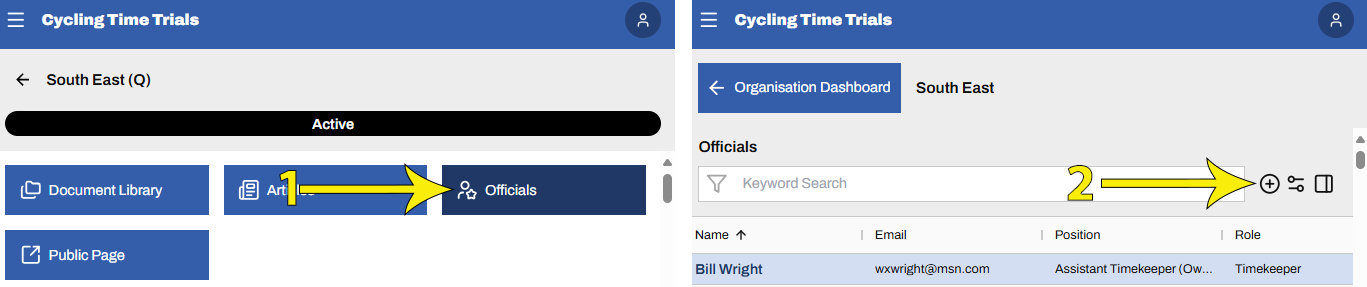
From the following District Administration screen, select Officials (arrow 1 below) to view a list of currently assigned district officials.
Select '+' (arrow 2) to add an official
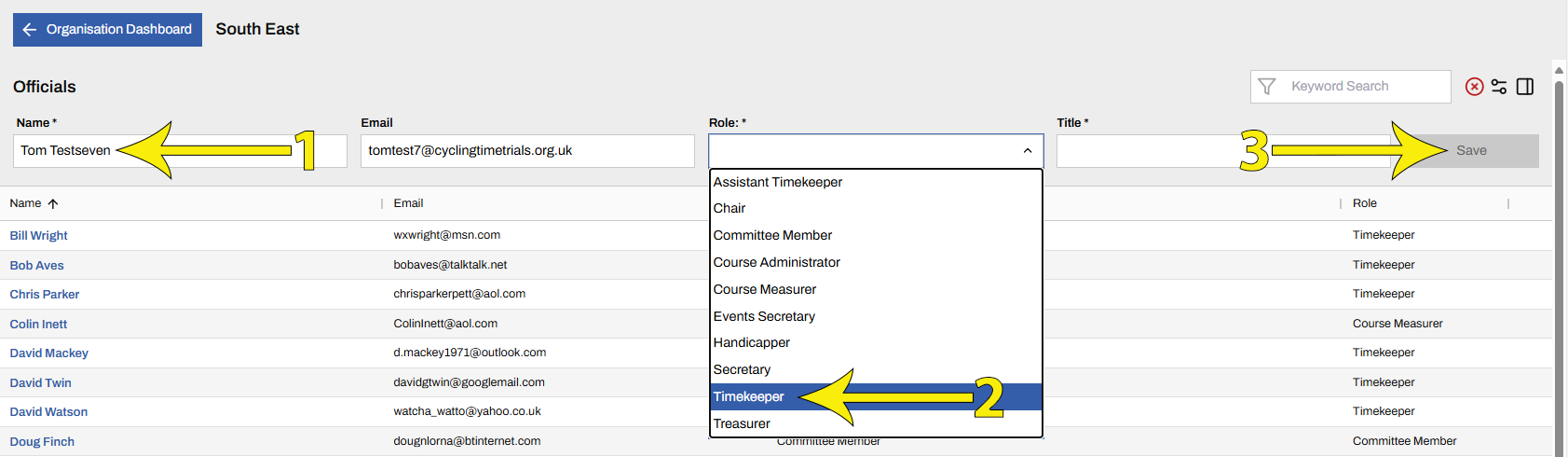
Start typing a name and select from the dropdown list of registered users (arrow 1 below)
Select the official's Role (arrow 2). Note - Timekeepers, Assistant Timekeepers, Course Measurers and Handicappers do not have district admin permissions on the site
Select Save to commit the new official (arrow 3)
To remove an official, hover over their name and click the bin icon on the right-hand side
2. Viewing Officials
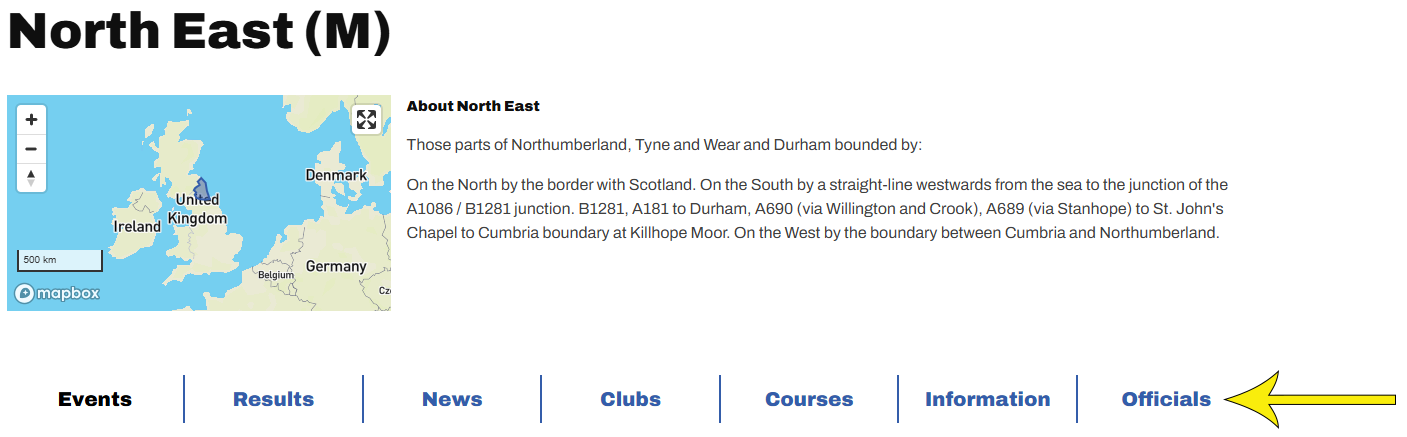
Any rider can view their district's specific content from the homepage via Discover ➯Find a District then selecting their district from the map, explained fully in the Districts Sites Guide (🔗)
Once there, district officials are listed within the Officials tab